TypeScript Notebook
Browser notebook UI that opens straight into working code.
A notebook for writing and running TypeScript cells in the browser, without setting up a project.
Visit typescriptnotebook.com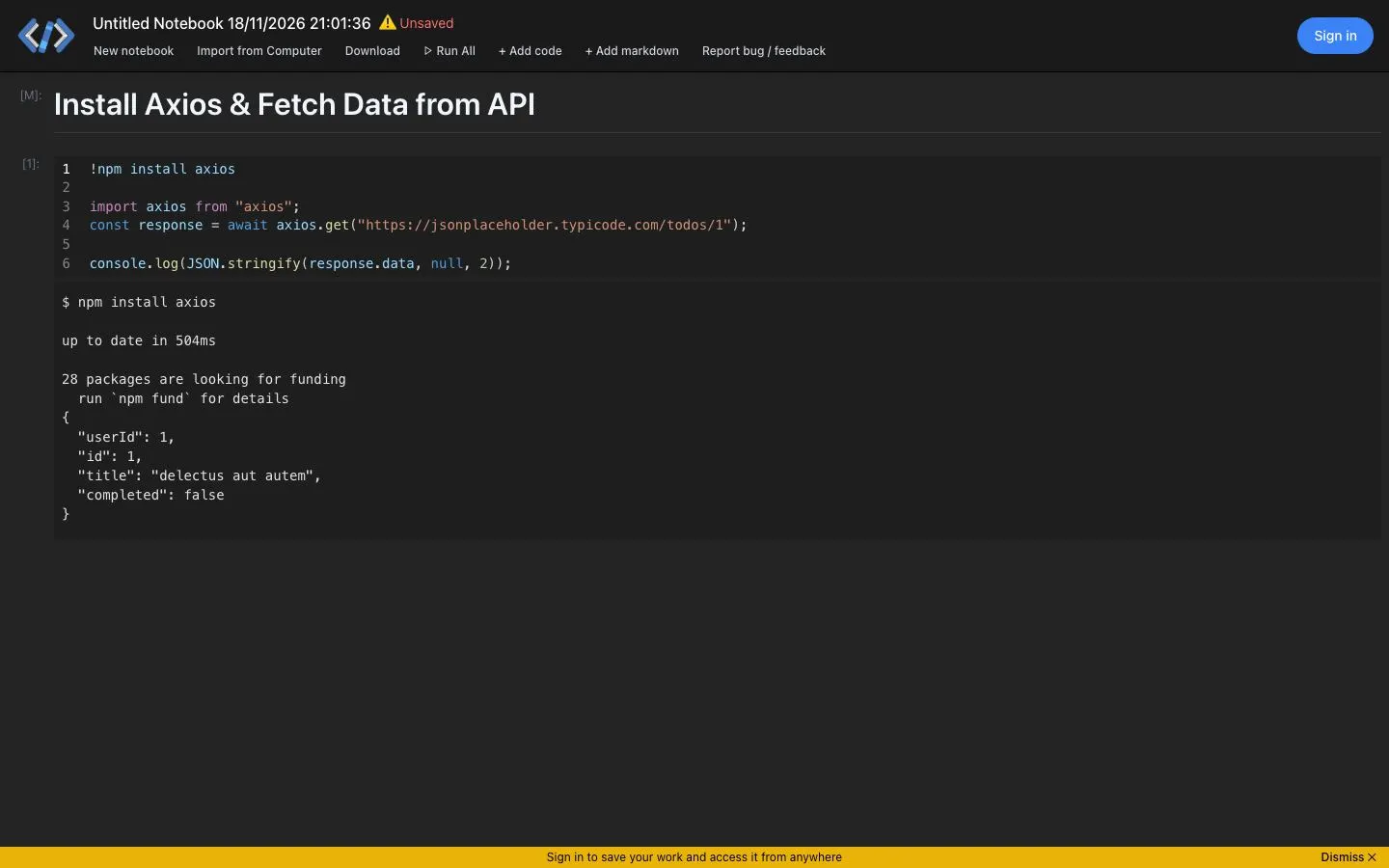
Design decisions
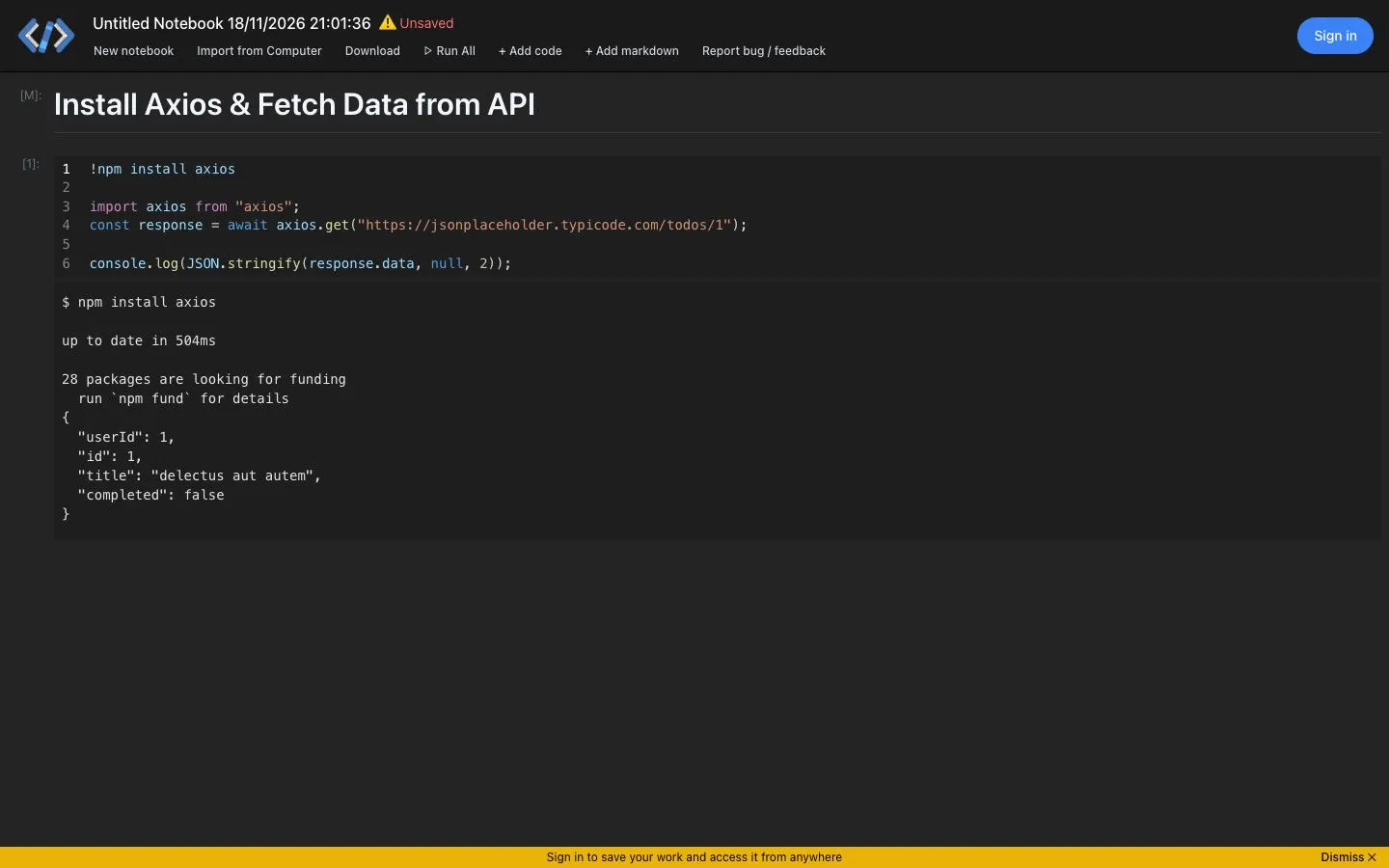
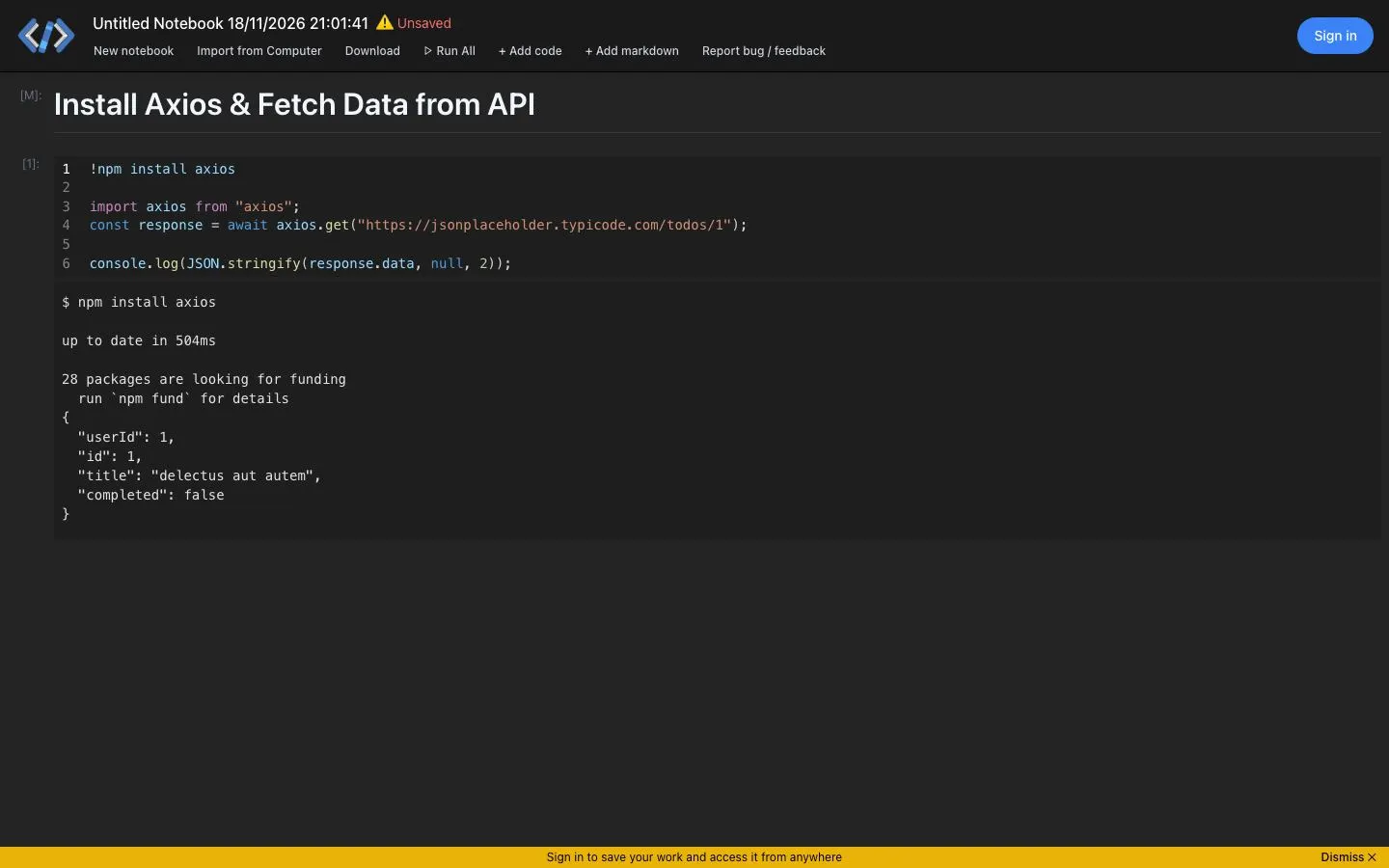
- There is no landing page in front of the product: the URL opens straight into a notebook with a sample cell that has already run.
- Dark editor-style UI with a single text toolbar under the notebook title (New notebook, Import from Computer, Download, Run All, Add code, Add markdown), so every action is visible and none is hidden in a menu.
- State is shown in the header: the notebook gets a date-stamped name and an 'Unsaved' flag with a warning icon in red, next to a blue 'Sign in' button that is the only filled control on the page.
- Cells carry Jupyter-style gutter labels, [M] for markdown and [1] for code, in small grey type that stays out of the way of the content.
- Output sits directly under the code cell in the same monospace, with the npm install log first and the printed JSON after it, so the result reads as a continuation of the code.
- A full-width yellow banner along the bottom asks visitors to sign in to save, with a Dismiss control, the one warm colour on a grey screen.
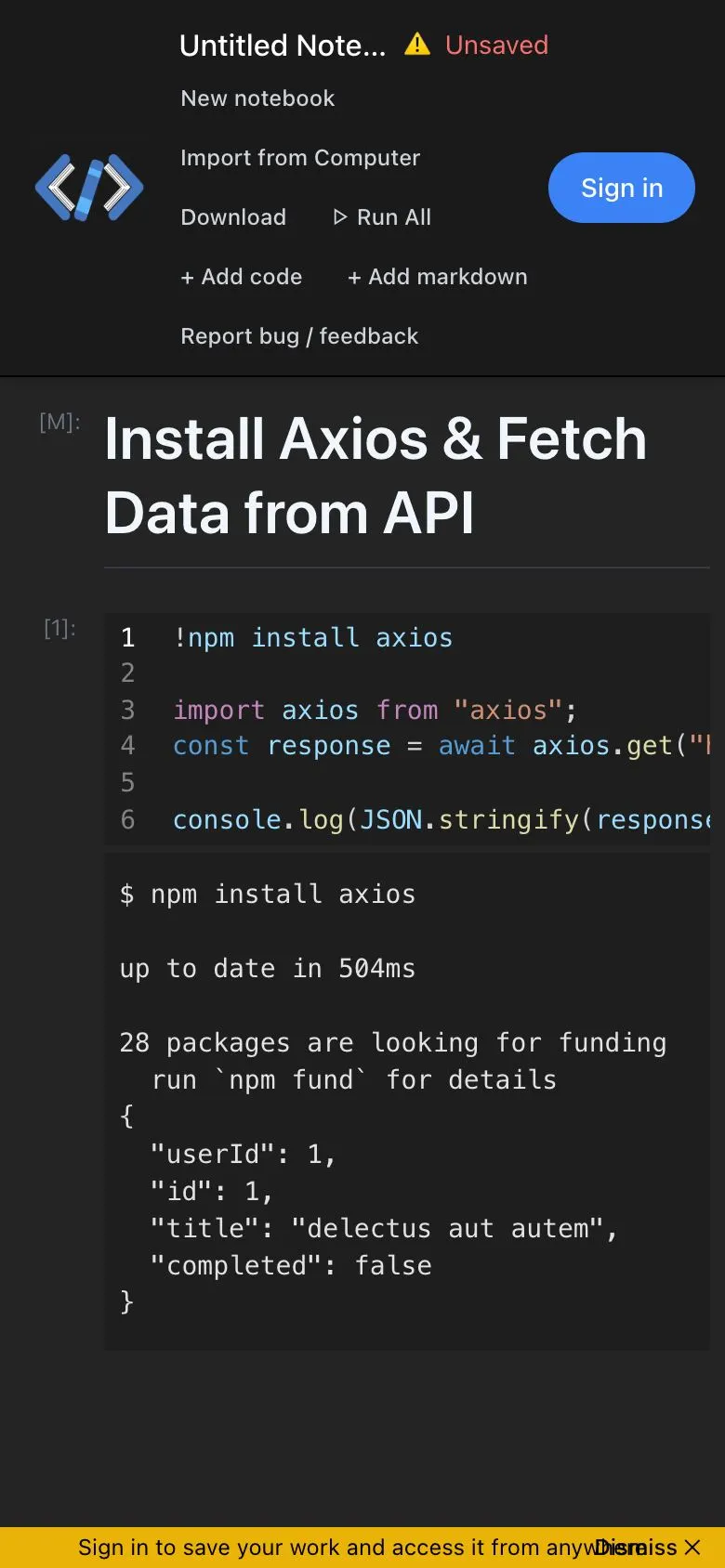
- On a phone the toolbar wraps into lines beside the logo and long code lines scroll sideways inside the cell.
On a phone
TypeScript Notebook has a single theme, so there is one set of captures.
The flow, step by step
Further down the page